
Going through a course
Seven journeys before this one describe buying, writing, versioning and assigning content. This is the first that shows somebody receiving it.
The screens here belong to a different part of Knowspread than the administration: the course player has its own colours, its own chrome and its own keyboard shortcuts. Do not expect the admin screens’ shapes.
1. Find what is waiting for you
Section titled “1. Find what is waiting for you”Studium in the left rail is the learner’s side of the app.
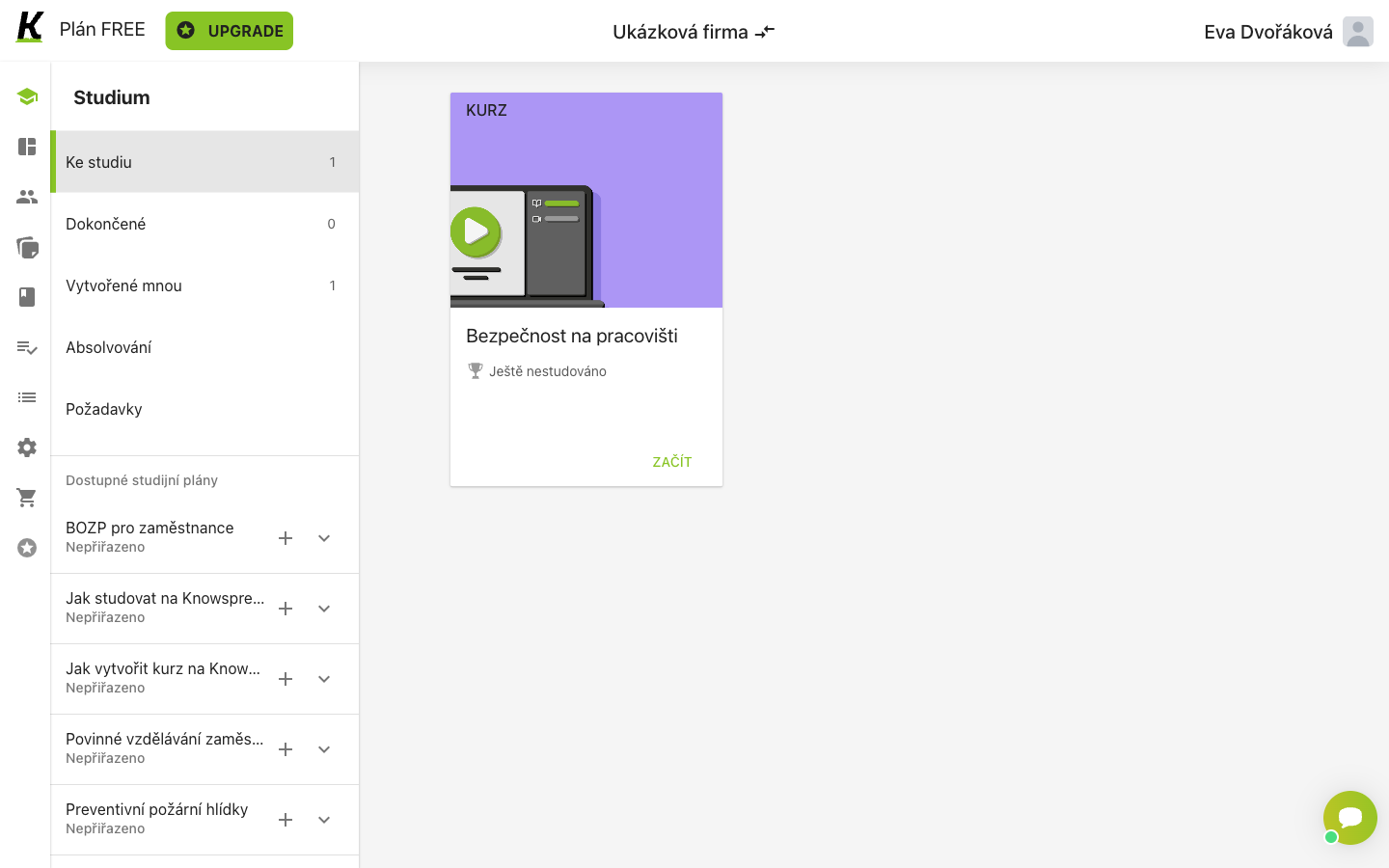
- Ke studiu counts what is waiting (1).
- Dokončené counts what you have finished (2).
- The card carries the kind (KURZ), the title, the state — Ještě nestudováno — and ZAČÍT (3).
- Dostupné studijní plány (4) are plans you can add yourself, each with a plus. They read Nepřiřazeno until you do.
2. Open the course
Section titled “2. Open the course”ZAČÍT leaves the administration behind for a full-screen player.
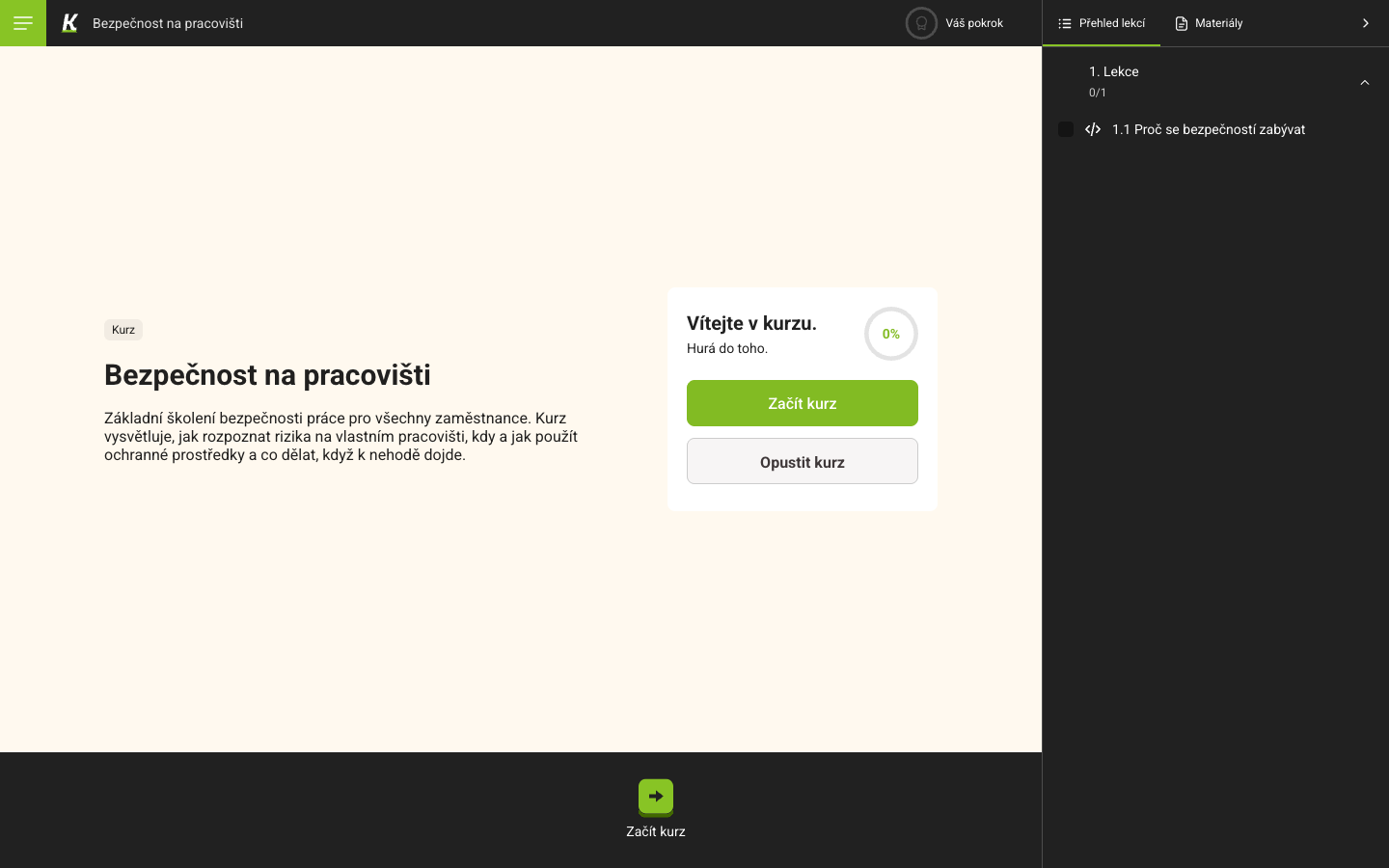
- 0 % is your progress (1), repeated as Váš pokrok in the top bar.
- Začít kurz begins (2).
- Opustit kurz returns to the administration (3) and keeps your progress.
- Přehled lekcí lists the lessons and their steps (4), with 0/1 counting the steps you have finished. Materiály beside it holds the course’s attachments.
- The description (5) is the one written in the editor — so what an author types there is what a learner reads before starting.
3. Read a step
Section titled “3. Read a step”A lesson opens on its own intro, and its steps are in the right rail. Clicking a step opens it.
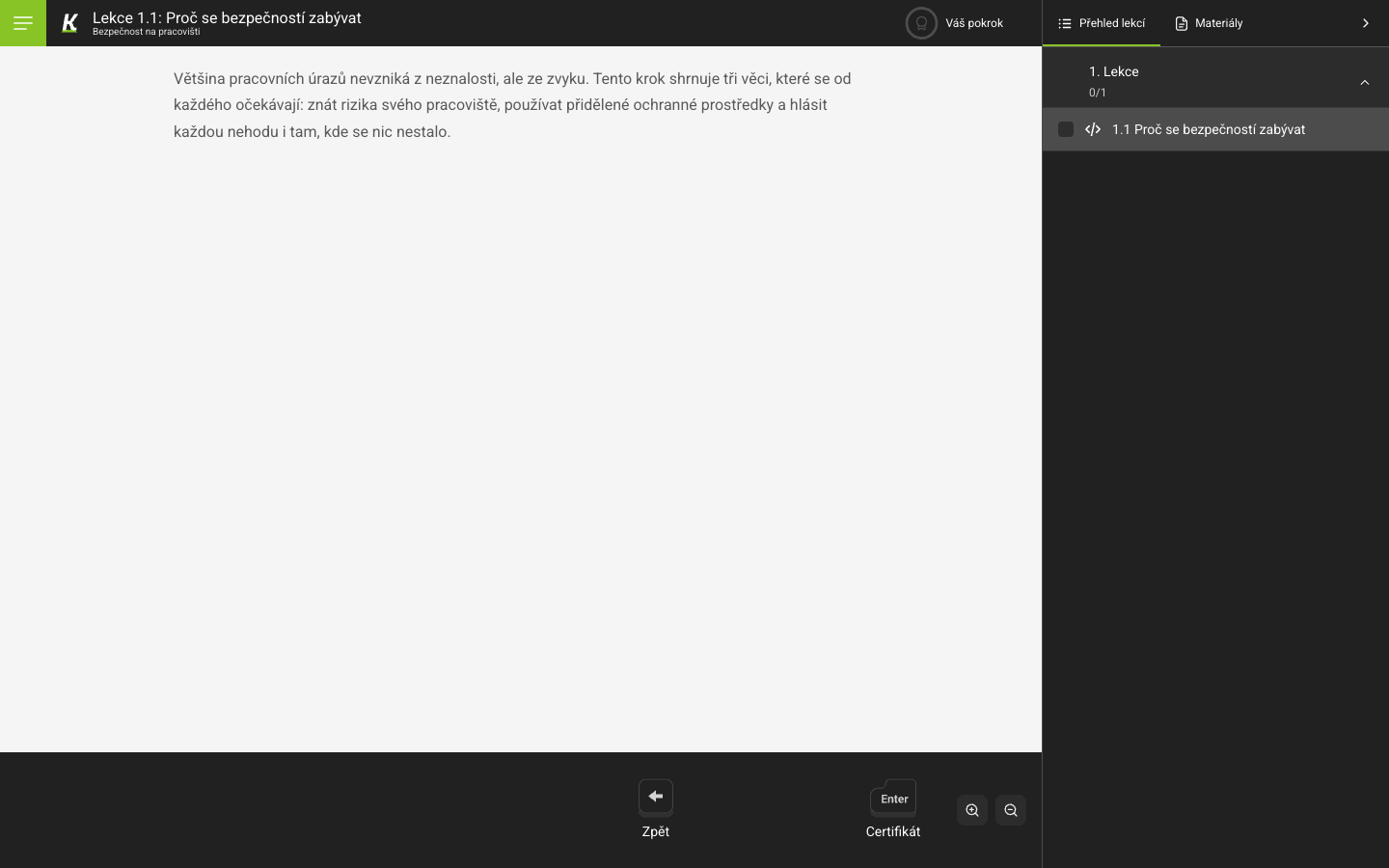
- The top bar names the step: Lekce 1.1 and its title (1).
- Zpět goes back a step (2).
- The forward control (3) carries its keyboard hint — Enter — inside the button. On the last step of the course it is labelled Certifikát rather than “next”, because that is where forward leads.
- The rail still shows the step unticked and 0/1 (4): opening a step is not finishing it.
4. Finish, and read what you are asked to confirm
Section titled “4. Finish, and read what you are asked to confirm”Forward from the last step lands on the course’s closing screen.
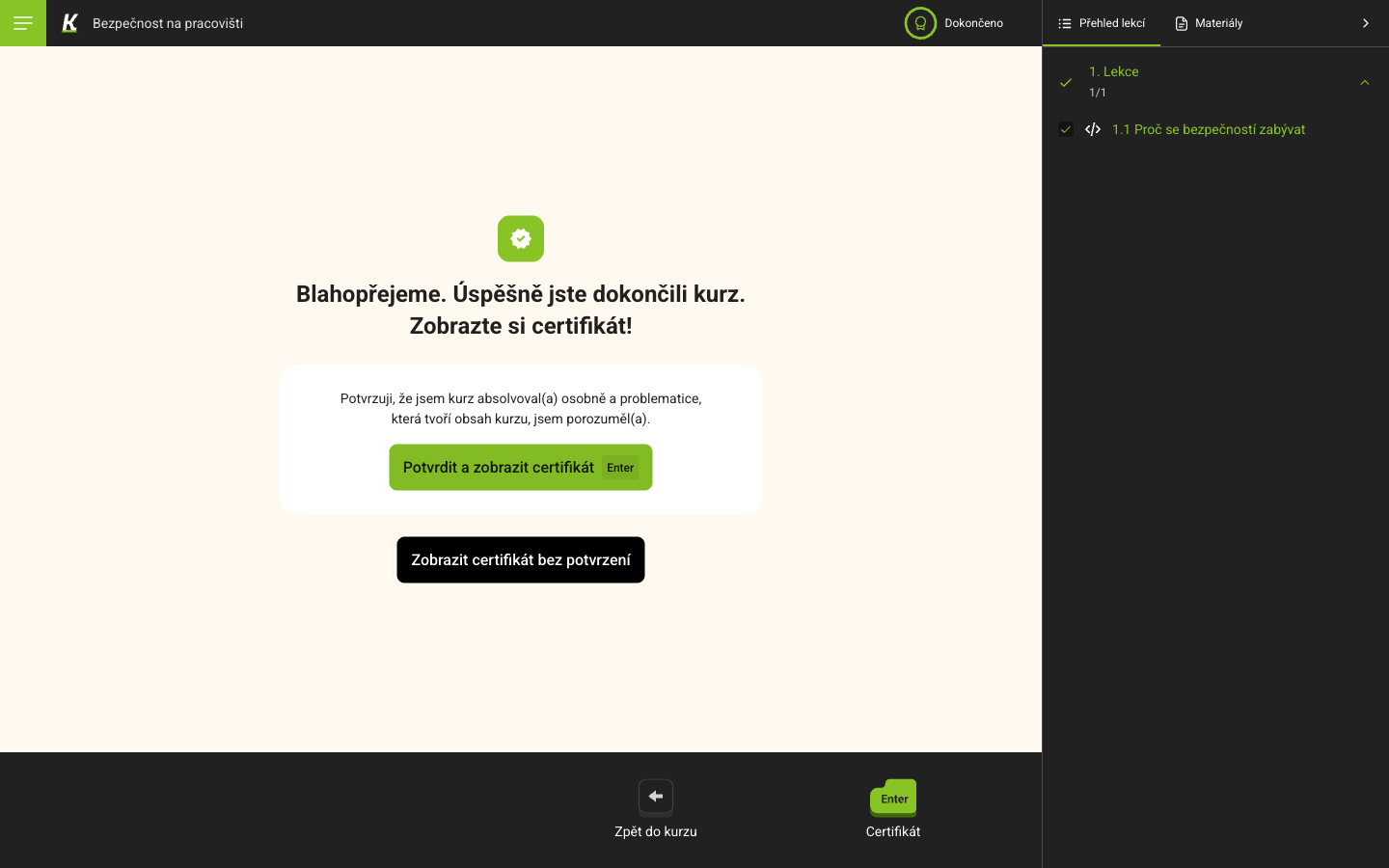
- The top bar already reads Dokončeno (1).
- A declaration (2): Potvrzuji, že jsem kurz absolvoval(a) osobně a problematice, která tvoří obsah kurzu, jsem porozuměl(a).
- Potvrdit a zobrazit certifikát (3) answers it. Enter does the same.
- Zobrazit certifikát bez potvrzení (4) gets the certificate without answering it.
- The rail shows 1/1 and green ticks (5).
Anyone using Knowspread for compulsory training should know that: the completion record and the personal declaration are two different things, and only the first is required to get one.
5. Land on a finished course
Section titled “5. Land on a finished course”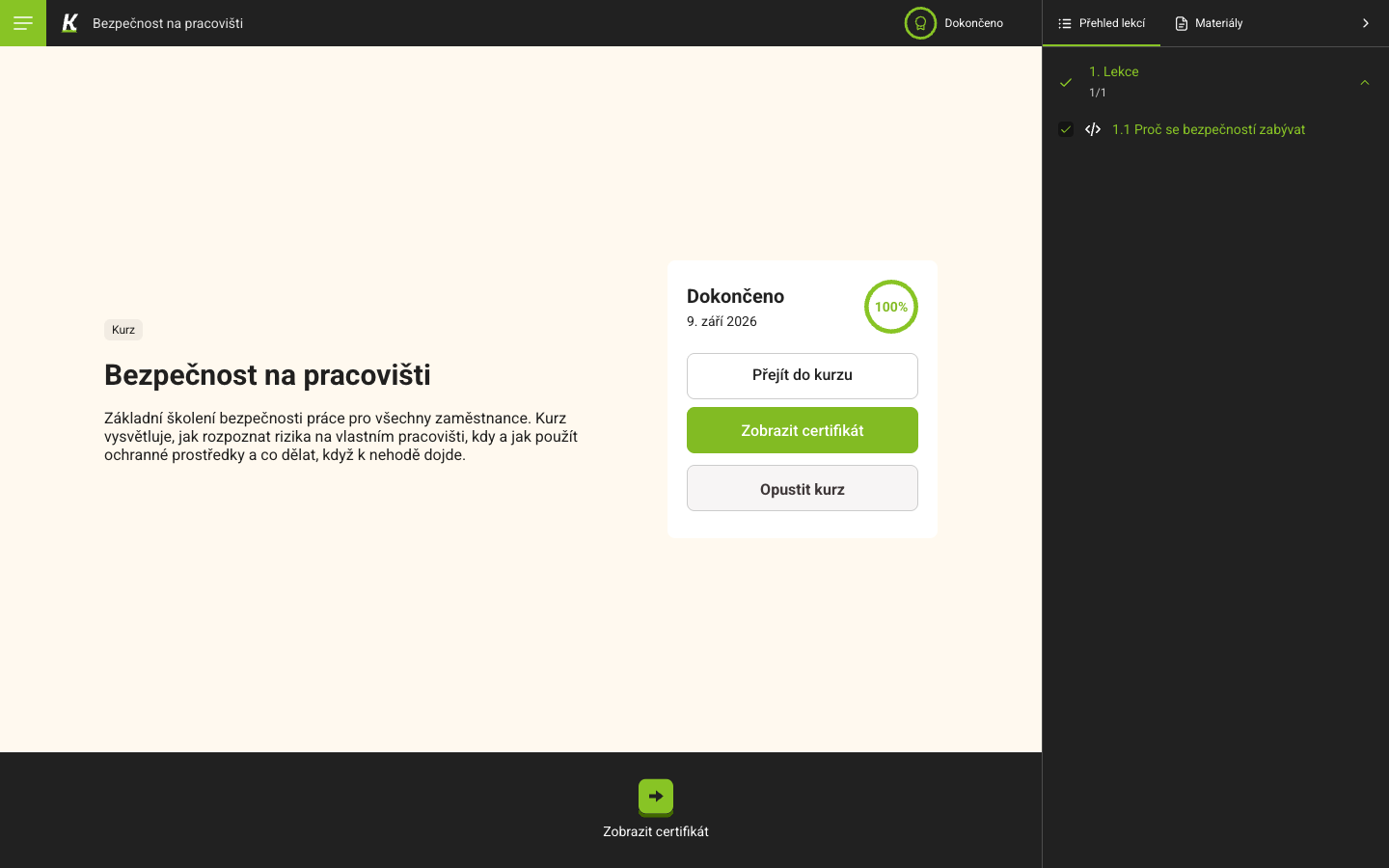
- 100 % replaces the progress ring (1).
- The completion date stands under Dokončeno (2).
- Přejít do kurzu (3) opens it again — a finished course stays readable.
- Zobrazit certifikát (4) is still there.
Questions about this step
Section titled “Questions about this step”Does leaving the course lose my progress? No. Opustit kurz returns to the administration and the course keeps the steps you finished — its rail counts them.
Can I get the certificate without the declaration? Yes, by the second button. Whether the difference is recorded anywhere an owner can see is not established here.
What a test inside a course looks like, and what happens when one is failed, is passing a test; the authoring side is building a quiz.
Next: following completion, the same events read from the owner’s side. For the learner screens as a reference, see your learning.